Share Your AI-Generated Websites Instantly
Preview and share websites created by your AI agents with a single click. Get shareable URLs for HTML pages directly from Compass browser or the run summary.
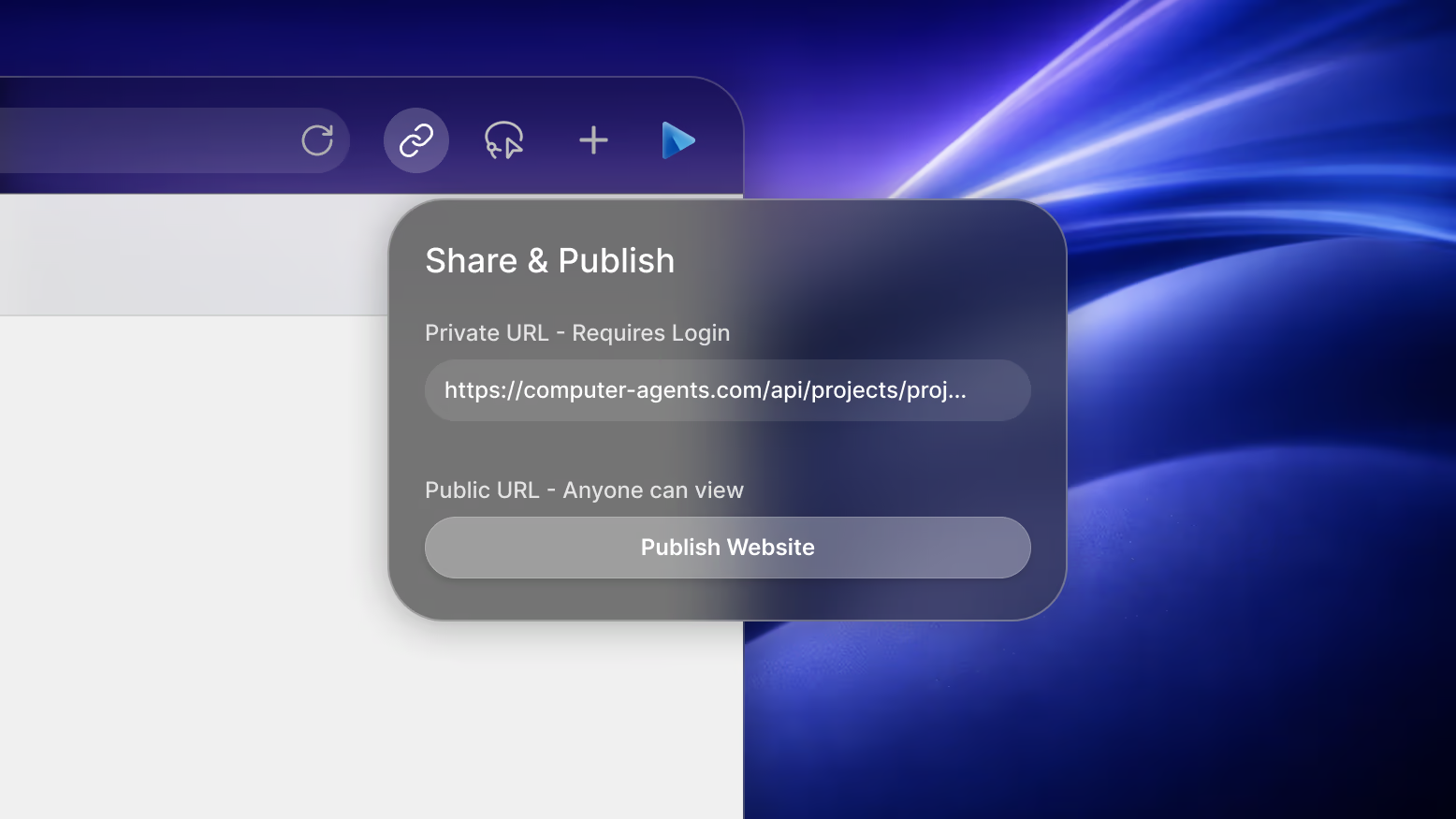
From Creation to Sharing in Seconds
When your AI agent builds a website, landing page, or any HTML content, you want to see it immediately - and often share it with others. Until now, accessing these previews outside of aiOS required manually constructing URLs or downloading files.
Today we're introducing instant website sharing - a seamless way to preview and share any HTML content your agents create. Whether you're iterating on a design, getting feedback from a colleague, or showcasing your agent's work, sharing is now just one click away.
Preview URLs in Compass Browser
When viewing a website from your environment in Compass browser, you'll now see a new link icon in the navigation bar (to the left of the + button). Click it to reveal the preview URL popup.
How to use it:
- Open any HTML file from your environment in Compass
- Click the link icon in the navigation bar
- Click "Copy" to copy the full preview URL
- Open the URL in any browser tab (while logged in)
The popup shows the complete URL and provides a one-click copy button with visual confirmation. The URL points directly to your file and will always show the latest version.
Share from File Previews
Every HTML file preview in your conversation now includes a Share Website option. When your agent creates a webpage, you'll see a preview card with an options menu (the three dots icon).
New "Share Website" option:
- Click the ellipsis menu on any HTML file preview
- Select "Share Website"
- The URL is instantly copied to your clipboard
- You'll see a checkmark and "Copied link" confirmation
This makes it incredibly easy to share results directly from the run summary without needing to open the file first.
Preview Links in Run Summaries
When your agent completes a task that includes HTML files, the run summary now displays clickable preview links for each webpage created.
What you'll see:
- A preview icon with the filename as a clickable link
- Opens in a new browser tab when clicked
- A "Copy link" button right next to it
- Works for all HTML and HTM files
This is perfect for quick access - click to view, or copy to share with your team.
Example Workflows
Landing Page Iteration You: "Create a landing page for my new product" Agent: Creates index.html with your landing page → Preview link appears in run summary → Click to view, copy link to share with your team for feedback
Portfolio Building You: "Build a portfolio page showcasing my projects" Agent: Creates a beautiful portfolio site → Open in Compass, click link icon → Share the URL with potential clients
Rapid Prototyping You: "Create a dashboard mockup with charts" Agent: Builds an interactive HTML dashboard → Click "Share Website" from the file preview → Send to stakeholders for review
Client Presentations You: "Generate a proposal page for the client" Agent: Creates a polished HTML proposal → Copy the preview URL → Include in your email to the client
How It Works
Preview URLs follow this format:
https://computer-agents.com/api/projects/{projectId}/files/{path}?environmentId={envId}
Key details:
- URLs point to the latest version of your file
- Changes you make are immediately reflected
- Authentication required (must be logged in)
- Works with any HTML or HTM file in your environment
Note: Preview URLs require you to be logged into your Computer Agents account. They're perfect for personal use and sharing with team members who have access to your project.
Three Ways to Share
We've added sharing capabilities in three strategic locations:
1. Compass Navigation Bar
- Link icon appears when viewing local:// URLs
- Click to reveal popup with copy button
- Best for: When you're actively browsing your site
2. File Preview Menu
- "Share Website" option in the ellipsis menu
- One-click copy with visual confirmation
- Best for: Quick sharing from the conversation view
3. Run Summary Links
- Clickable links + copy buttons for each HTML file
- Appears automatically when agent creates webpages
- Best for: Immediate access after task completion
All three methods copy the same URL format, so use whichever fits your workflow.
Get Started
This feature is available now for all users. Try it out:
- Ask your agent to create any HTML page
- Once complete, look for the preview link in the run summary
- Click to view or copy to share
Or if you're in Compass viewing a local file:
- Look for the link icon in the navigation bar
- Click it and copy the URL
- Open in a new tab or share with others
Building and sharing websites with AI has never been easier. Your agent creates, you share - instantly.
Ready to get started?
Try Computer Agents today and experience the future of AI-powered automation.
Get Started