Email Integration: Run AI Agents from Your Inbox
Send tasks to your AI agents directly via email. Forward documents, reply to continue conversations, and receive results - all from your existing email workflow.
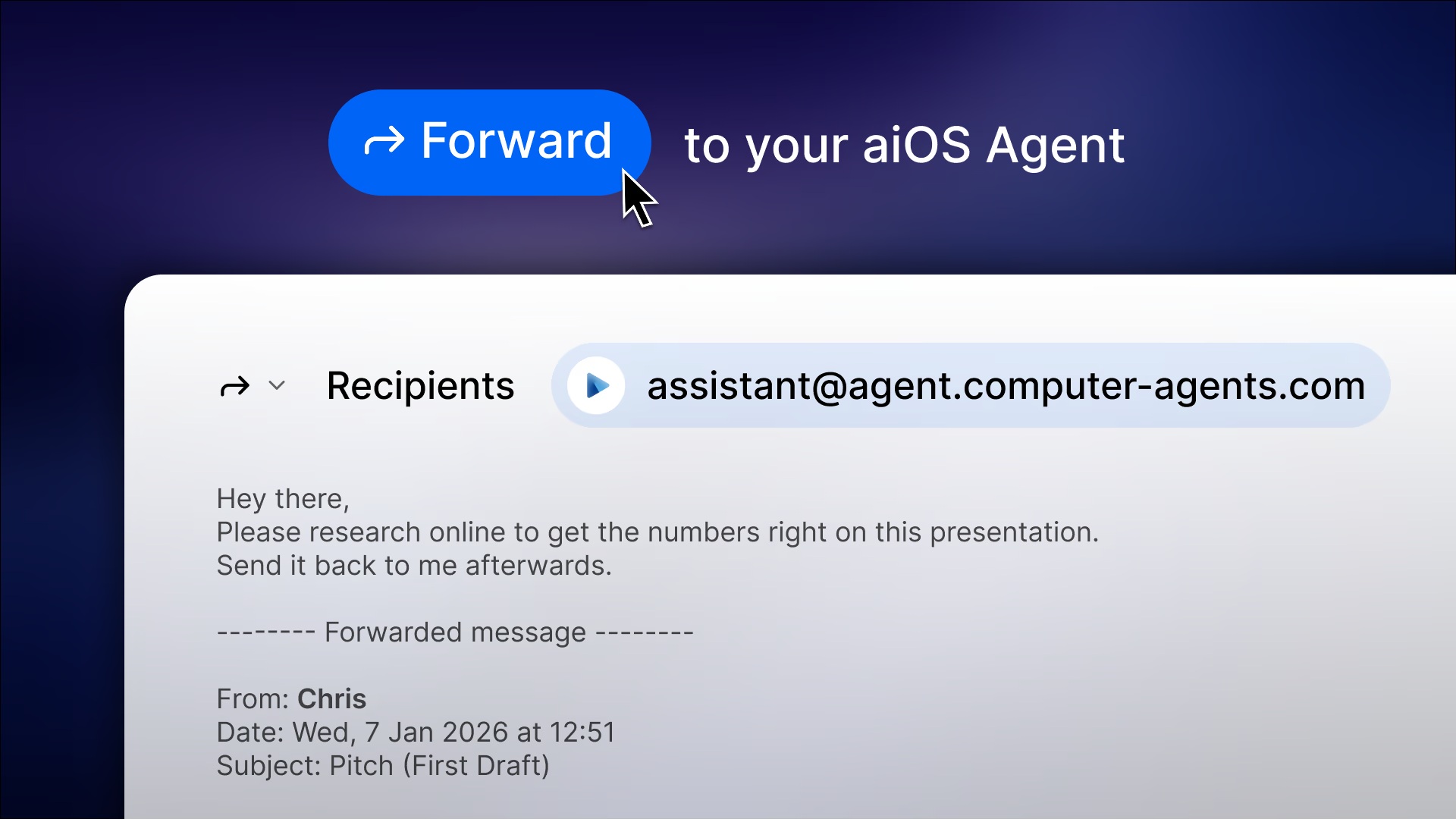
Your Inbox, Supercharged with AI
We're thrilled to introduce Email Integration - a powerful way to interact with your AI agents using nothing but your email client. No apps to open, no interfaces to learn. Just send an email and let your agents handle the rest.
Forward that lengthy document you need summarized. Send a research request while waiting for your coffee. Reply to continue a task you started yesterday. Email integration brings the full power of AI agents to the tool you already use every day.
Whether you prefer Gmail, Outlook, Apple Mail, or any other email client - if you can send an email, you can now run AI agents.
Setup Guide
Connecting your email takes just a few steps:
Step 1: Go to Settings Open the aiOS app and navigate to Settings → Integrations → Email.
Step 2: Add Your Email Enter the email address you want to use for sending tasks. This should be your primary email that you check regularly.
Step 3: Verify Your Email We'll send a verification code to your email. Enter this code in the settings to confirm ownership.
Step 4: Find Your Agent's Email Each of your agents has its own unique email address. Go to the Agents app to see them, or find them in Settings. The format is: agent-name@agent.computer-agents.com
Step 5: Start Sending Tasks Send an email to your agent's address and start working!
That's it! Your email is now connected to aiOS. Each agent has its own dedicated email address, so you can send tasks directly to the agent you want to use.
Sending Tasks via Email
Running tasks via email is intuitive and flexible:
Basic Task Simply compose an email to your agent's address. For example, if you have an agent named "Research Assistant", send to research-assistant@agent.computer-agents.com:
Subject: Analyze Q4 sales trends Body: Focus on regional differences and year-over-year growth.
With Attachments Attach any files your agent needs to work with:
- PDFs for analysis or summarization
- Spreadsheets for data processing
- Images for description or editing
- Code files for review
- Documents for editing or translation
Multiple Agents, Multiple Addresses Each agent has its own email address, making it easy to route tasks to the right agent:
- coder@agent.computer-agents.com - Send coding tasks
- research-assistant@agent.computer-agents.com - Send research requests
- data-analyst@agent.computer-agents.com - Send data analysis tasks
Specify Environment Use a prefix in your subject line to specify which environment to use:
[env:Production]- Use a specific environment
Example: [env:Staging] Deploy the latest changes
Smart Thread Continuation
Just like with our Telegram integration, email supports intelligent conversation continuation. When you reply to a previous task email, we automatically continue the same conversation thread.
How it works:
- Send a task: "Create a Python web scraper"
- Agent completes and emails you the result
- Reply to that email: "Add error handling and logging"
- Agent continues with full context from the previous work
Starting Fresh
To explicitly start a new task (not a continuation), include [new] in your subject line:
Subject: [new] Build a different feature
This ensures your message is treated as a brand new task, even if you're replying to an old thread.
Receiving Results
When your task completes, you'll receive a detailed email response:
What's Included:
- Task completion summary
- Full agent response with explanations
- Any files created or modified (as attachments)
- Link to view the full session in aiOS
- Thread ID for reference
File Attachments When your agent creates files (code, documents, images, etc.), they're automatically attached to the response email. No need to log into aiOS to download them.
Progress Updates For longer tasks, you'll receive a confirmation email when processing starts, so you know your task was received and is being worked on.
Use Cases
Document Processing Forward any document to your agent:
- "Summarize the key points from this contract"
- "Extract action items from these meeting notes"
- "Translate this document to Spanish"
Research on the Go Send research requests from your phone:
- "Research competitors in the CRM space"
- "Find recent studies on remote work productivity"
- "Compile a list of top JavaScript frameworks in 2026"
Code Review Attach code files for instant review:
- "Review this PR for security vulnerabilities"
- "Suggest performance improvements"
- "Add documentation and type hints"
Content Creation Request content directly to your inbox:
- "Write a blog post about our new feature"
- "Draft a press release for the product launch"
- "Create social media posts for this announcement"
Data Analysis Attach spreadsheets and get insights:
- "Analyze this sales data and identify trends"
- "Create visualizations from this CSV"
- "Generate a summary report with recommendations"
Email Commands
Control your agent experience with subject line commands:
Task Control
[new]- Force start a new task thread[continue]- Explicitly continue previous task[status]- Get status of your recent tasks
Configuration
[env:Name]- Use a specific environment[priority:high]- Mark task as high priority
Examples:
Draft newsletter for January→ Send to writer@agent.computer-agents.com[new][env:Staging] Deploy the latest changes[status]- (empty body) Get task overview
Commands can be combined and are case-insensitive. The agent is determined by which email address you send to.
Security & Privacy
Your security is paramount:
Email Verification Only verified email addresses can send tasks. Each email must match your registered and verified address.
Encrypted Storage Your email address and any related data are encrypted at rest in our database.
Secure Processing
- Attachments are scanned for security
- Files are processed in isolated environments
- No permanent storage of email content after processing
Access Control
- Only you can send tasks from your verified email
- Unlink your email anytime from Settings
- View all email-initiated tasks in your activity log
No Password Required We never ask for your email password. Communication happens through standard SMTP/email protocols.
Tips for Best Results
Get the most out of email integration:
Be Specific Clear, detailed requests get better results:
- ❌ "Fix the bug"
- ✅ "Fix the authentication bug in login.py - users can't log in with Google OAuth"
Use Subject Lines Wisely Put the main task in the subject for quick processing:
- Subject: Summarize Q4 financials
- Body: Focus on revenue growth and cost reduction initiatives. Compare to Q3.
Organize with Threads Keep related tasks in the same email thread by replying. This maintains context and makes follow-ups seamless.
Attach Relevant Files Include all files your agent needs upfront. It's more efficient than describing what's in them.
Set Default Environment
Configure your default environment in Settings to skip the [env:] tag in every email.
Get Started
Ready to run AI agents from your inbox?
- Open aiOS and go to Settings → Integrations → Email
- Enter your email address
- Enter the verification code we send you
- Find your agent's email address in the Agents app (e.g., my-agent@agent.computer-agents.com)
- Send your first task!
From quick questions to complex multi-step workflows, email integration puts AI agents at your fingertips - right where you already spend your day.
Welcome to a smarter inbox.
Ready to get started?
Try Computer Agents today and experience the future of AI-powered automation.
Get Started